Warning: mysql_free_result() expects parameter 1 to be resource, null given in /vservers/assortedgarb/htdocs/blog/wp-content/themes/garbage5/sidebar-column2.php on line 10
Fri
23
Dec '11

Change happens: border-image breaks in Chrome

As anyone who has worked in the front-end dev world knows, keeping up with the “new” stuff is challenging. Thankfully, the browser makers have provided vendor prefixes which allow us to use a lot of the new CSS3 properties before they are finalized. But thanks to a reader of my blog, I was made aware that Chrome (version 16), as they removed the need for a prefix on border-image, has also changed the way the property is rendered. This morning, I awoke to find my site broken in the latest version of Chrome.

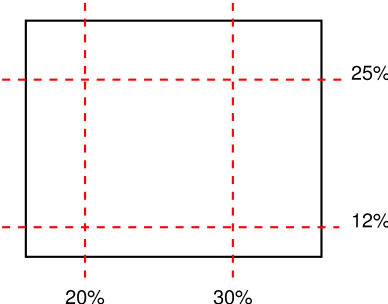
When I updated this blog to “HTML5″, I took the leap and used CSS3 everywhere that I could. This post area was a prime candidate for border-image. For the uninitiated, border-image allows you to use a single image as both a border and fill for an element. All you need to do is specify how much of the top, left, bottom, right of the image will be the borders, and how those pieces should fill each area (stretching or repeating).

Illustration of 9-slice from the W3C specificationDiagram illustrating the cuts corresponding to the value ‘25% 30% 12% 20%’ from the W3C specification

If you’ve ever used Fireworks, Illustrator or Flash, they all have a feature known as 9-slice scaling. Border-image is basically the same thing, but done on the fly via CSS. The rule for all posts here looked like this:

.post {
margin: 0 0 40px 0;
-webkit-border-image: url(images/article-background-stretch.png) 29 50 55 32 round round;
-moz-border-image: url(images/article-background-stretch.png) 29 50 55 32 round round;
border-image: url(images/article-background-stretch.png) 29 50 55 32 round round;
border-width: 29px 50px 55px 32px;
}

In keeping with best practices, you can see that I have listed the official property (without the vendor prefix) last, so that as browsers drop the need for the vendor prefix, they will simply read the last property – and the change will be seamless. Except in the case where all browser vendors are rendering a property different than the spec—thus lulling us into believing their rendering is correct when it is not.

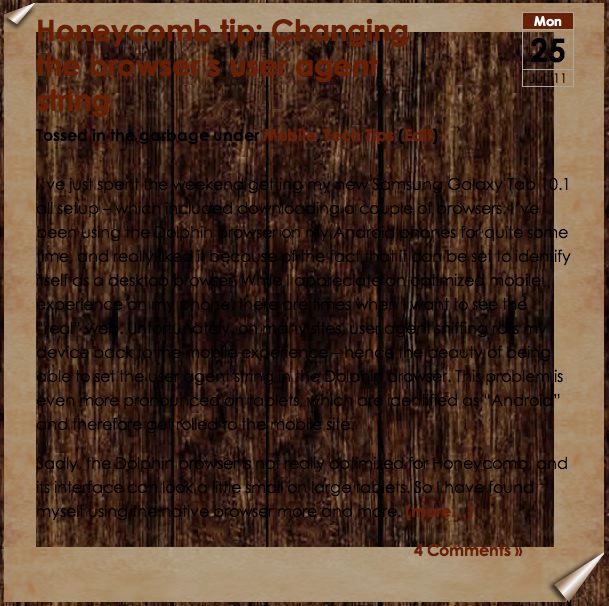
A hole-y articleDon’t adjust your screen! This is what every post looked like!

There is actually an additional value in the spec called “fill”. The “fill” keyword instructs the browser to render the middle of the image as the background of the element. Without the keyword, the middle remains transparent (ie, the background-image or color is rendered instead). If there is no background-image or color defined for the element, it is simply transparent. Till now, all browsers have ignored the lack of the “fill” attribute and rendered the middle regardless. The code above worked perfectly—but it was based on improper rendering.

Chrome (actually, the change was made in Webkit) has recently changed their implementation of the border-image “fill” value as described in the spec. This is good, but it will ultimately break a lot of sites since many of us left the fill attribute off since vendors were ignoring it. Sloppy, sure. But it worked… until today.

So, dive back into your code and add the “fill” keyword if your site suddenly looks like swiss cheese. But you’ll want to (for now) only add the fill value to the non-prefixed version, as the addition of the value currently breaks Firefox if added to the -moz version of your rule (hat tip to @chriseppstein for that little nugget). My post class now looks like this:

border-image: url(images/article-background-stretch.png) 29 50 55 32 fill round round;

“fill” tells Chrome (and eventually other browsers) to render the center of your image as the background of the element. The two “round” values instruct the browser to tile the images on the x- and y-axis.

13 Comments »

Tue
16
Aug '11

The Importance of “s” in CSS3 Transition Shorthand

On a recent project, I spent the better part of an hour (okay, maybe longer) fighting with what I would learn is an interesting anomaly in the way that Firefox (4 and 5) deal with CSS3 shorthand transition notation. What baffled me was the fact that the other players, Webkit (Safari and Chrome) and Opera browsers, worked properly (or least what I thought was proper) with the exact same code. The premise was to have an area with a fixed height, set to overflow: hidden, but then allow the site navigation to scroll (transition) to the proper anchor, resizing the content box’s height to accommodate the contents while keeping the other contents hidden.

To illustrate the problem, have a look at this simplified example:

Sed do eiusmod tempor incididunt ut enim ad minim veniam, excepteur sint occaecat. Quis nostrud exercitation ullamco laboris nisi lorem ipsum dolor sit amet. Mollit anim id est laborum. Consectetur adipisicing elit, ut enim ad minim veniam, eu fugiat nulla pariatur. In reprehenderit in voluptate qui officia deserunt sunt in culpa.

Duis aute irure dolor ut enim ad minim veniam, velit esse cillum dolore. Quis nostrud exercitation. Ut labore et dolore magna aliqua.

Velit esse cillum dolore ut enim ad minim veniam, ullamco laboris nisi. Duis aute irure dolor sed do eiusmod tempor incididunt lorem ipsum dolor sit amet. Velit esse cillum dolore qui officia deserunt ut labore et dolore magna aliqua.

Mollit anim id est laborum. Ut aliquip ex ea commodo consequat. Eu fugiat nulla pariatur.

Ut enim ad minim veniam, velit esse cillum dolore qui officia deserunt. Sunt in culpa. Ullamco laboris nisi ut enim ad minim veniam, ut aliquip ex ea commodo consequat. Ut labore et dolore magna aliqua. Sunt in culpa consectetur adipisicing elit, mollit anim id est laborum.

Sed do eiusmod tempor incididunt ut enim ad minim veniam, excepteur sint occaecat. Quis nostrud exercitation ullamco laboris nisi lorem ipsum dolor sit amet. Mollit anim id est laborum. Consectetur adipisicing elit, ut enim ad minim veniam, eu fugiat nulla pariatur. In reprehenderit in voluptate qui officia deserunt sunt in culpa.

Duis aute irure dolor ut enim ad minim veniam, velit esse cillum dolore. Quis nostrud exercitation. Ut labore et dolore magna aliqua.

Velit esse cillum dolore ut enim ad minim veniam, ullamco laboris nisi. Duis aute irure dolor sed do eiusmod tempor incididunt lorem ipsum dolor sit amet. Velit esse cillum dolore qui officia deserunt ut labore et dolore magna aliqua.

Mollit anim id est laborum. Ut aliquip ex ea commodo consequat. Eu fugiat nulla pariatur.

Ut enim ad minim veniam, velit esse cillum dolore qui officia deserunt. Sunt in culpa. Ullamco laboris nisi ut enim ad minim veniam, ut aliquip ex ea commodo consequat. Ut labore et dolore magna aliqua. Sunt in culpa consectetur adipisicing elit, mollit anim id est laborum.

The two columns of text each have a transform: translateY(-100px); applied to them on :hover. Additionally, they are both set to transition the effect – thereby “scrolling” the text up by 100px. Simple enough. And if you are looking at this in anything other than Firefox, both columns behave the same. (more…)

7 Comments »

Fri
27
May '11

Best Tip Ever: Using Online CSS3 Tools In Dreamweaver

One of the coolest things about the development of CSS3 is all of the experimental sites and online tools being created to help us all learn the new syntax, properties, etc. There are literally tons of great ones like css3maker.com, John Allsopp’s  westciv tools, border-image.com, css3generator.com and many more. In fact, even Microsoft has gotten in the game with their test drive site for IE 9 (and Preview Release of IE 10). But even with the great enhancements to Dreamweaver CS5.5, using these tools still requires bouncing out to the browser, using the online tool and then copy/pasting the generated code back into your CSS in Dreamweaver – or does it?

Actually, one of the best features of Dreamweaver, Live View, can be used in a way that you might not have thought of. We know that Live View allows us to see the page, rendered by the embedded Webkit engine, exactly as it would appear in Webkit-based browsers. But there is also an interesting text field that becomes active in Live View at the top of the document window – an address field – just like in a browser!

The address field in Live View

And yes, you can type any URL into the field. Dreamweaver, just like the browser, will load the page in Live View. If you are in Split View mode, you might notice that the actual HTML from the page you are viewing is not there because Dreamweaver is still showing the code of your original page.

Live Code displaying the generated source

But click the Live Code button, and Dreamweaver will display the generated source of the page you are looking at — complete with all the corresponding CSS and Javascript files appearing in the related files bar. It’s a great way to learn from what others are doing.

To get the most out of this feature, I have simply created a “tools page” with links to all of my favorite online tools. In order to interact with your local tools page, you will need to choose “Follow Link” or, even better, “Follow Links Continuously” from the Live View Options menu.

The follow links continuously command

So now, when I start Dreamweaver, I immediately open this page, turn on Live View, enable the Follow Links Continuously option and then go about working on my projects. Any time that I need a gradient, transition or anything more complex that I don’t want to “think about” how to create, I switch to my “tools page” tab where all my online friends are ready to help. I can then easily copy their code into the stylesheet that I am working on.

Live View rendering Colorzilla's Gradient Maker

Let me know what you think about this – or if you have an even better “Best Tip Ever”!

7 Comments »